

Step-by-Step: How to Pay Student Fees Online
Follow this guide to pay school fees using Skyward Family Access and RevTrak.
Step 1: Access Fee Management in Skyward
Log in to Skyward Family Access.
Click Fee Management on the left menu to view your student's unpaid fees.
Click Make a Payment to start the payment process.
Step 2: Select Items in RevTrak
You will be redirected to the RevTrak portal.
Locate your item under Required Fees or Optional Fees.
Click Add to Cart.
Step 3: Verify Your Cart
Review the item description and total amount in your cart.
Click Checkout.
Step 4: Log In or Create a RevTrak Account
Returning Users: Enter your registered email address and click Continue to log in.
First-Time Users: Click Create Account.
For first-time setup, fill in your contact information, billing address, and password, then click Create Account:
Step 5: Complete Checkout
Verify your billing address and ordered items.
Select your payment method (Credit or debit Card or Bank Account).
Check the reCAPTCHA box and click Place Order.
Step 6: Confirmation
After submitting your payment, return to Skyward Family Access to verify that the fee shows as paid ($0.00 remaining due)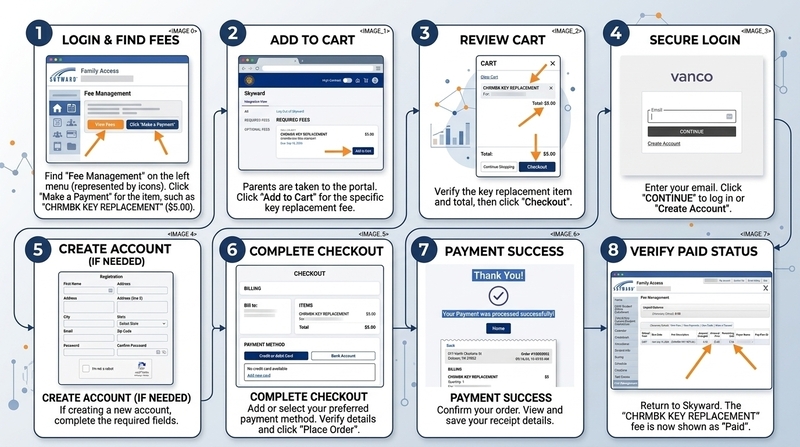
RevTrak's Parent Portal FAQ